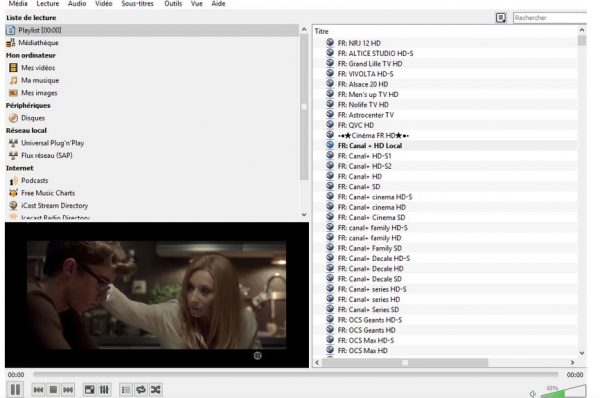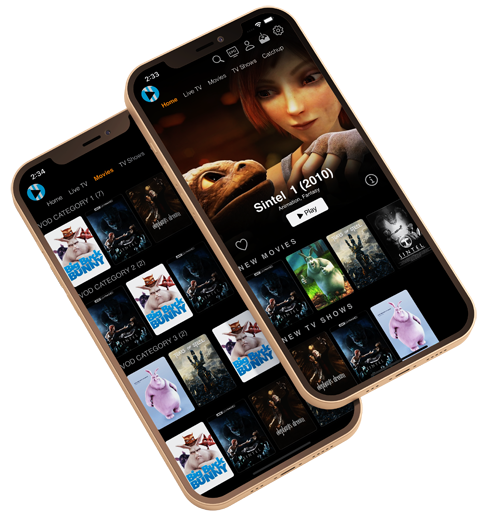

NB: The application is chargeable (about 5 or 6€). You can test it for a week and then you will have to pay to use it. Here's how to activate it.
How to activate from SMART IPTV app
When you start the SMART IPTV application, you should see a "MAC address" line, note this address (or take a picture with your mobile)

- Go to the site https://siptv.eu/activation
Enter your MAC address (with the “:”)
Enter an email address
Choose the payment method Paypal or CB (the activation of the Smart IPTV application will be immediate)
Validate payment and that's it.
Method 1
You have an IPTV subscription to install on your new application. It's quite simple. here is how to put your IPTV subscription on your Smart TV:
- You must have an m3u file or, more generally, a url address to an m3u playlist file of the type (http://fournisseuriptv/blabla=m3u?user=xxxx?password=xxx..)
- Go to http://siptv.eu/mylist/
- Enter the MAC address of your TV (the one used to activate Smart IPTV)
- Enter the address of your playslist in the URL box (or indicate your m3u file if you have a file)
- Check the box “I am not a robot”
- Click Send
- Restart your tv, everything should work
Method 2
- Copy-paste the subscription link in your browser and press "Enter" to get the m3u file

- Click Save File

- Paste your MAC address and click “Delete”

- Paste mac address and click choose file

- select the file location and click open:

- After clicking on “Send”

- wait for the complete loading of the channels and press the “zero” button using your remote control.

You will receive the identifiers of your iptv subscription by email in this form, which will make it easier for you to configure them on the application:
Nom : Smart iptv
User: XXXXX
Password: YYYYYY
URL : http://exemple.com:8789
Smart iPTV subscription setup screen on the app:

click on Add User

Configure the NET IPTV application :
Just go to your device's store , search for the app, download it and install it.
After installation, a message on the home screen is displayed asking you to go to the official website of the application, to activate the application.
The MAC address, which is the identifier of your device, it will be used to activate the application.
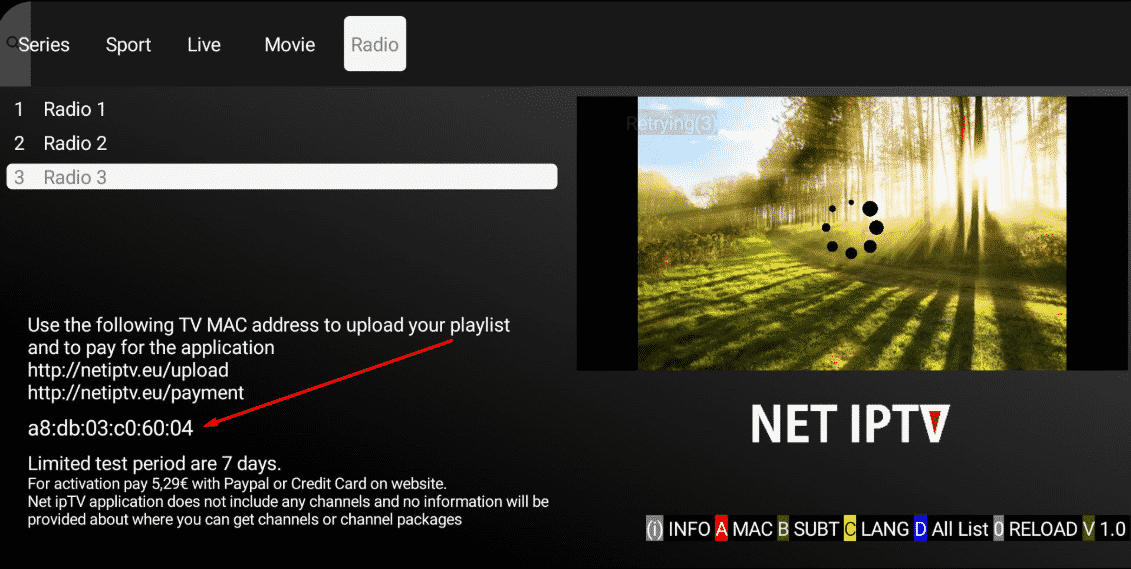
Then go to the application site at the following address: https://www.netiptv.eu/
NB: The application is chargeable (about 5 or 6€). You can test it for a week and then you will have to pay to use it.
the application website: https://www.netiptv.eu/Payment
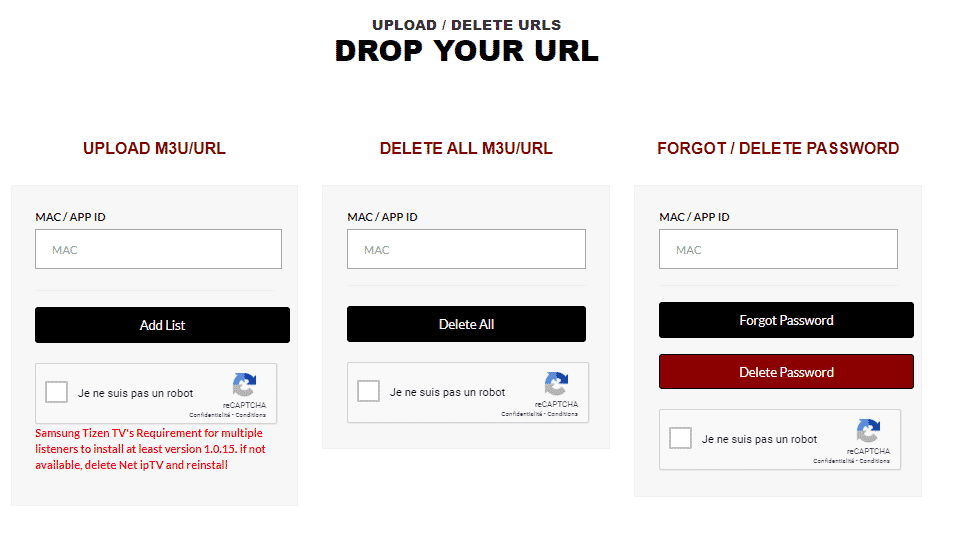
- Enter your device's MAC address that you wrote down earlier.
- Check I am not a robot and answer the security question
- Paste the address of the playlist you received from your IPTV provider
- Click add list.
- Now go back to your Android TV or device
- Wait a few moments for your provider's playlist to load

How to configure Flix IPTV?
We now show you how to set up your subscription on the Flix IPTV app using your m3u link.
1. Once the application is installed, launch it so that its mac address is displayed on the screen.

If you haven't written down the mac address, you can find it by going to the left menu, navigating to Settings, and in the next menu, scrolling down to User Account.
2. Go to the link: https://flixiptv.eu/mylist
3. Fill in the requested information, the mac address and your m3u link then click on Send.

4. The last step is to restart the app or refresh the list in Settings > Edit Playlist. A window will appear asking you to reload the list, click OK.
How to activate Flix IPTV?
NB: Flix IPTV is like other applications for Smart TV ( SET IPTV , NET IPTV, Smart STB, …) it offers 7 days of free trial, after that you will have to pay 7.99 EUR to activate it for life on a single device or TV .
Here is the link to the activation page: https://flixiptv.eu/activation

1 cliquez sur login with new user account

2
User: XXXXX
Password: YYYYYY
URL : http://exemple.com:8789

click on sign up
1 cliquez sur login with xtream Codes API

2
Nom : Smart iptv
Username : XXXXX
Password : YYYYYY
URL : http://exemple.com:8789

click on Add Profile

1 URL : http://exemple.com:8789
Username : XXXXX
Password : YYYYYY
click on Login

IPTV Smartres
You will receive the identifiers of your iptv subscription by email in this form, which will make it easier for you to configure them on the application :
Nom : Smart iptv
User: XXXXX
Password: YYYYYY
URL : http://exemple.com:8789
click on Add User
 MYTV Online 3
- What you need to provide to your service provider: MAC - ID that starts with 00:1E:B8
- The ID is displayed in the menu Content Manager > Content Sources > Add Portal
- It is also indicated on the label glued to the back of the box
- What you will receive from your service provider: Portal URL .
for example " http://YourProvidersPortalURL.com/c " - MYTVOnline 3 > Content sources > Add a portal > put the URL above in the corresponding field > Do not put a username or password > Login
- It is possible to change the ID using the Advanced Settings menu, but this is only recommended for advanced users.
MYTV Online 2- What you need to provide to your service provider: MAC - ID that starts with 00:1A...

When the provider asks for a MAC address, give them the MAC ID which starts with 00:1A.
The ID can be seen on the sticker on the bottom of the device or on the portal login screen
- Portal name : iptv
- Portal URL : What you will receive from your service provider: Portal URL .
for example " http://YourProvidersPortalURL.com/c "
Step 1: When the box is loading, the main portal screen will appear. After that, click on “ settings ”, press the remote control button “ SETUP/SET ”  Step 2: Then press on “ System Settings ” and click on “ Servers ”.
  Step 3: Select " Portals ". Step 4: In the “ Portal Name 1
 ” line , enter the following “ IPTV ”. In " Portal URL 1 ", enter the portal address provided by us Step 5: When all the operations listed above are completed, press "
  Okay ”. When the settings are saved, click on “ EXIT ” When all the steps listed above are completed, press “ EXIT ” 2 times on the remote control and restart the gate. Now everything is ready to start watching live TV...
- Open the Downloader app on your Firestick.
- Enter the following path in the URL text box: https://www.iptvsmarters.com/smarters.apk
Click OK. - Once installed, just enter your username , password and URL to enjoy the latest videos (movies and series) on all channels updated weekly.
- You can read the full guide to install and use IPTV Smarters Pro in Firestick here.
Follow the steps below to setup IPTV on Kodi:
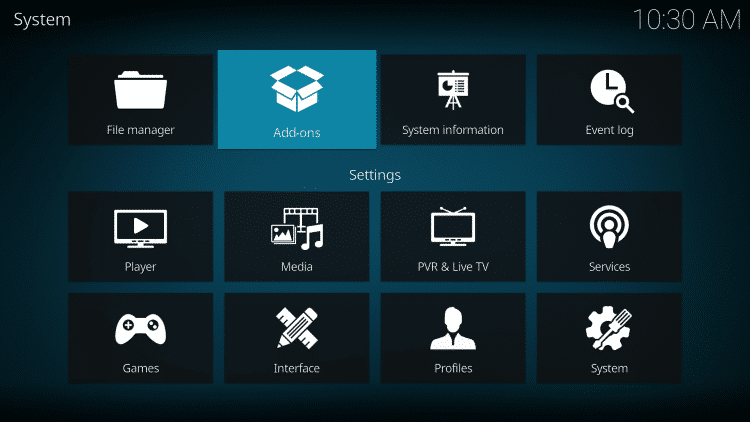
1. Launch Kodi and select Settings.

2. Click on Add-ons
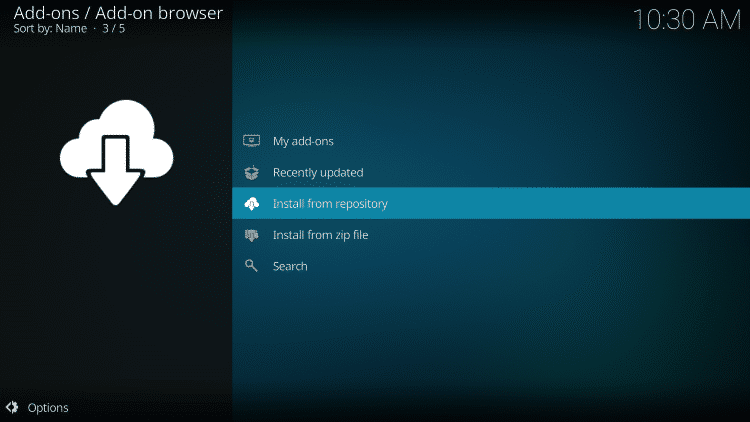
3. Choose Install from Repository
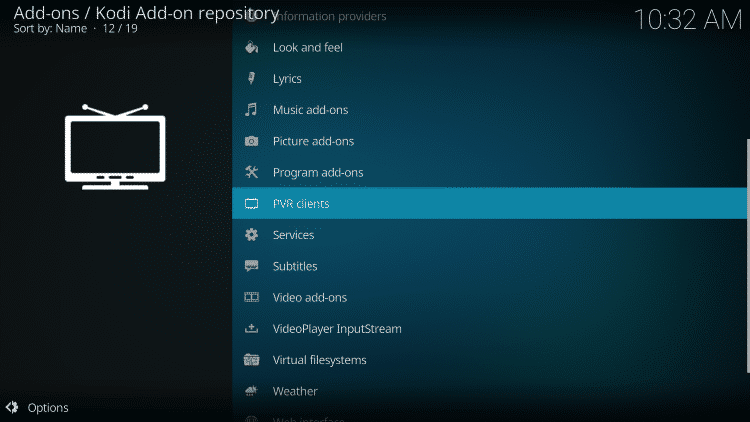
4. Click PVR Clients
5. Scroll down and choose PVR IPTV Simple Client
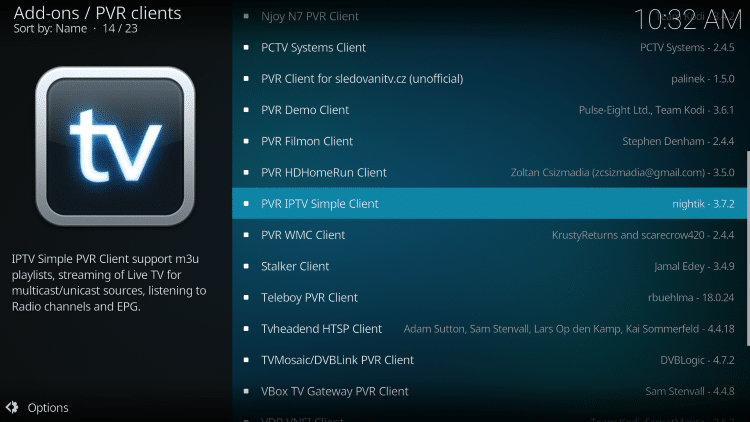
6. Click Install
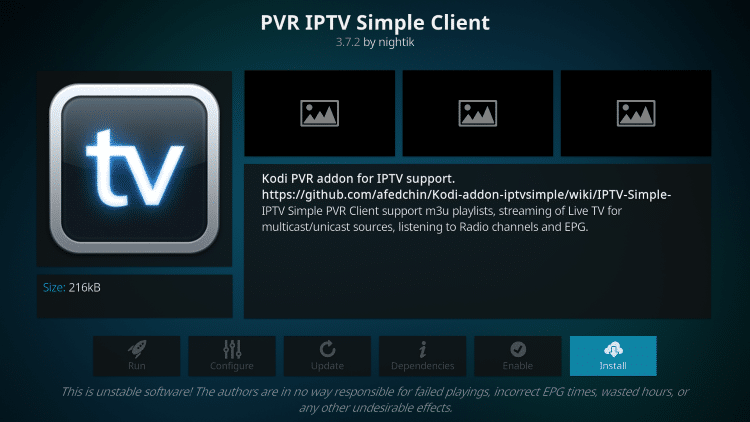
7. Wait for the PVR IPTV Simple Client Add-on Installed message to appear.
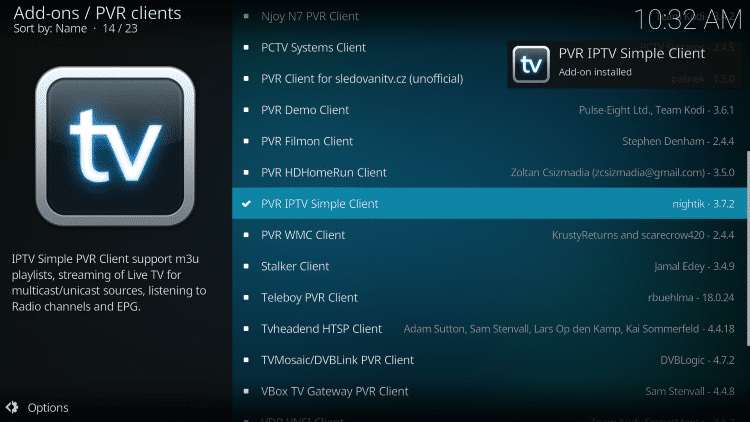
8. Click again on PVR IPTV Simple Client
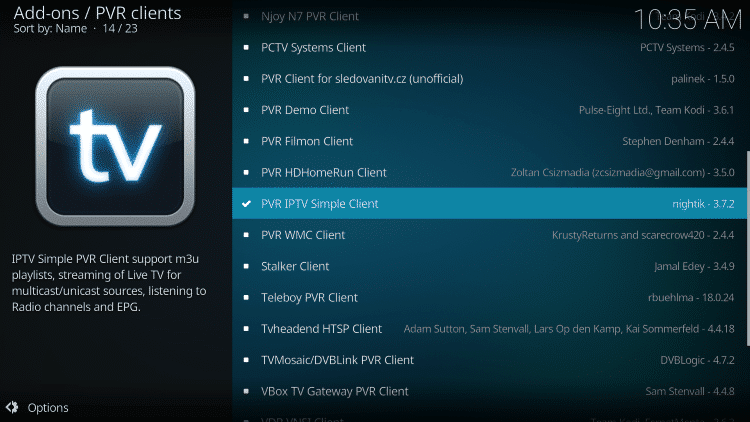
9. Click Configure

10. Under General, hover over and select M3U List Link.
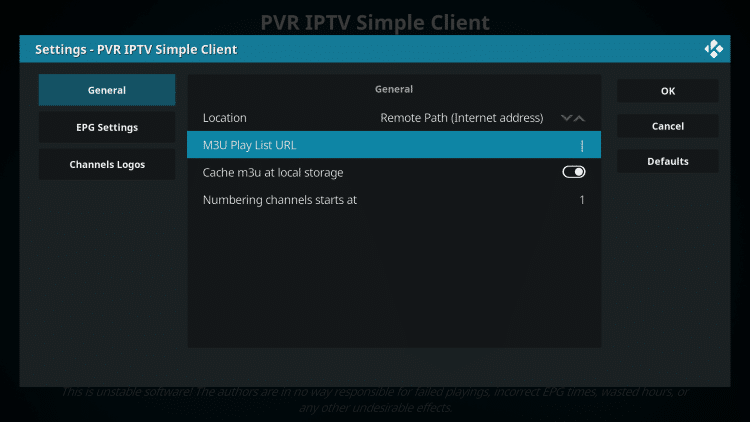
11. Enter the M3U Link provided from your IPTV service with your account information inserted, then click OK.
NOTE: you will usually have two M3U Link. One is channel lists and the other is EPG (TV Guide). We will insert the M3U EPG Link in step 8 below.
Most M3U Links require you to enter your service username and password. You will usually see where they are in the Link, as indicated by “username=xxxx” & password=xxxx”.
You will enter your username and password where the x's are.
Here is an example of M3U Link.
It's not a real M3U Link, but here's what the structure looks like:
.
Once you have inserted your username and password in the m3u link, you can use the bit.ly service and shorten the m3u link so that it is easier to type in the box below. That's what we did.
If you don't want to use bit.ly, you need to make sure the address is entered in the error-free zone. One wrong character in the address and it won't work.

12. Hover over EPG settings and choose XMLTV Link m3u
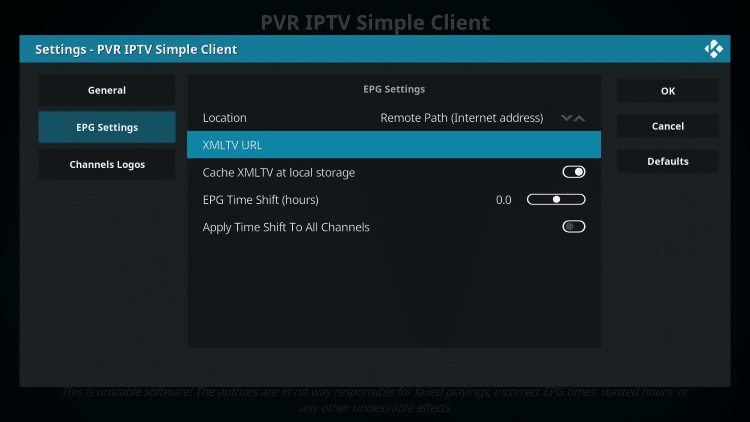
13. Enter the EPG M3U link or Abbreviated bit.ly link of your TV guide, then click OK.
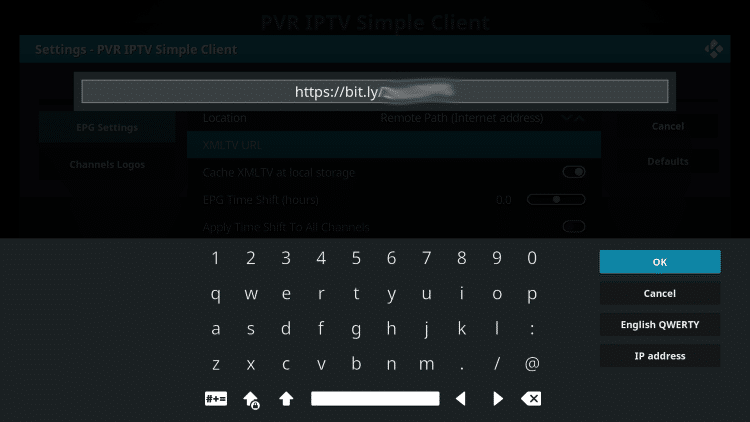
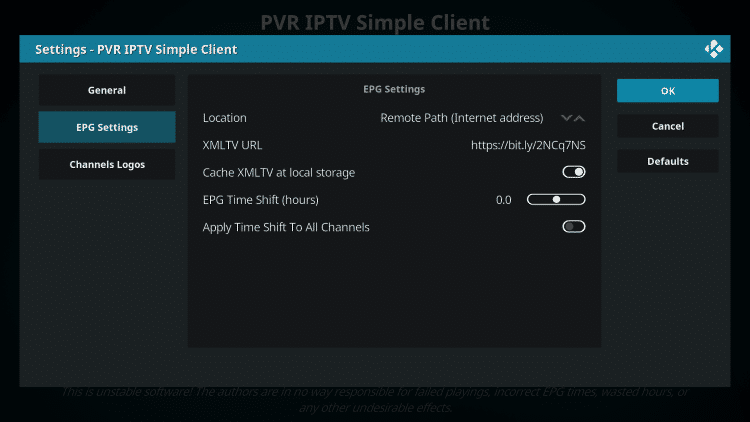
14. Click OK again
15. Click OK when prompted with the Reboot Needs message.
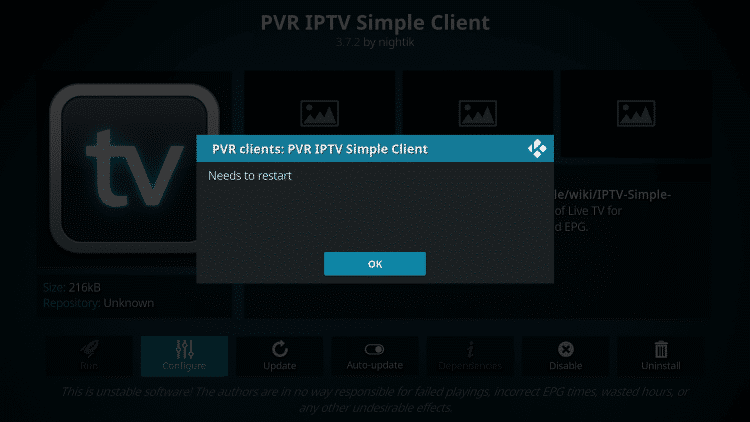
16. Force Kodi and reopen the app. Wait for PVR Manager to start and the channels to be downloaded (this may take a few minutes).
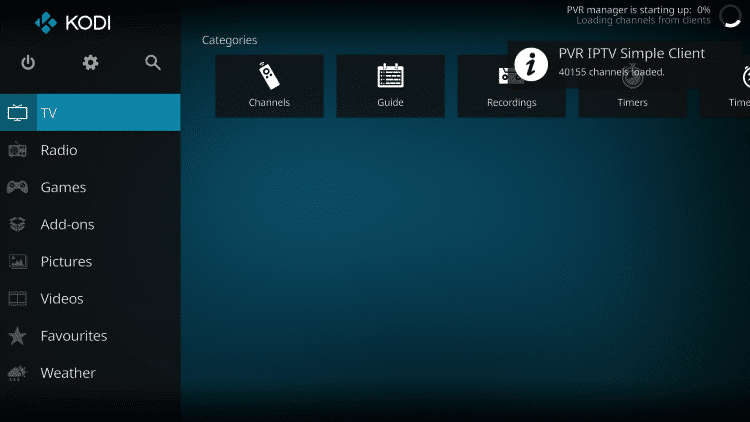
When you are done, you will see the message loaded Simple customer chains
That's it! Installation is complete
PVR IPTV Simple Client Details & Description Guide
You can now access the IPTV service by clicking on Channels or Guide.
The Guide option is shown below:
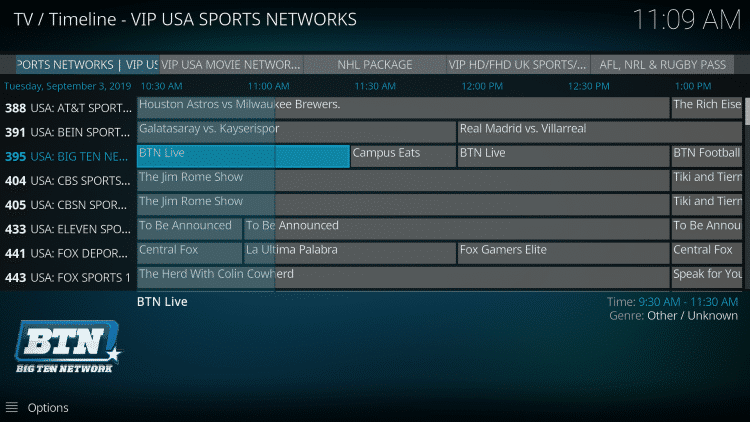
Press the select button on your remote to display the following options:

Here you can choose from information, channels, guide and settings.
Settings will provide you with these options:
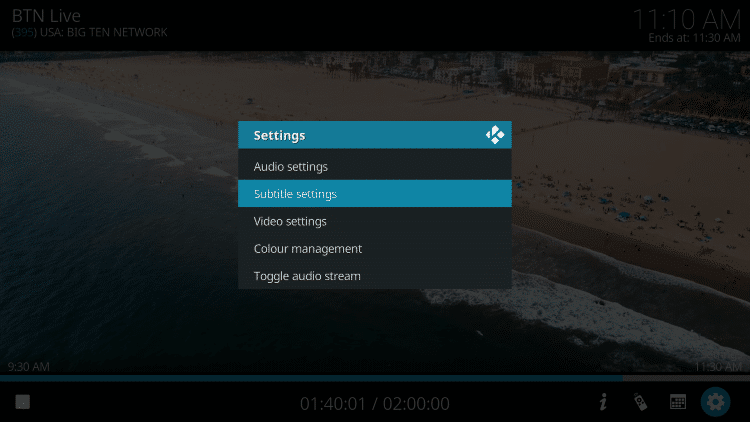
During testing, we found that subtitles did not work properly in Kodi IPTV.
Step 1: Begin by downloading and installing VLC media player on your device.
- Launch VLC on your pc, if you don't have VLC you can download it here: VLC
Step 2: Click on the Media option located at the top of the VLC player.
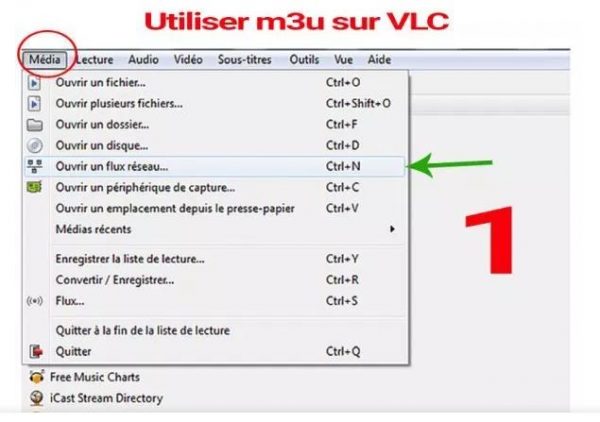
Step 3: Tap the network stream in the Media page.
Step 4: Enter IPTV Provider URL .
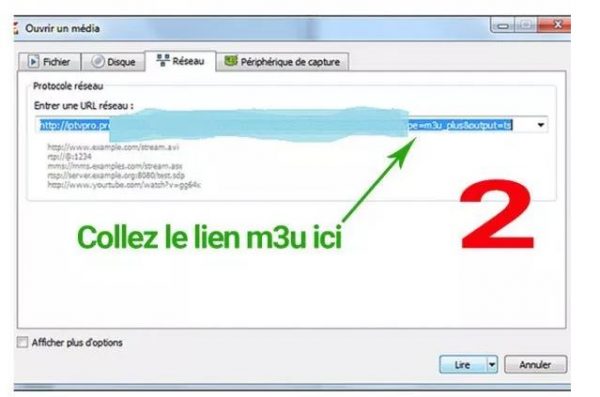
Step 5: Wait for the channels to be loaded on the device and click on your favorite channels to stream them.